
Blog
What to do if your email has been Hacked
What to do if your email has been hacked, according to a tech expert
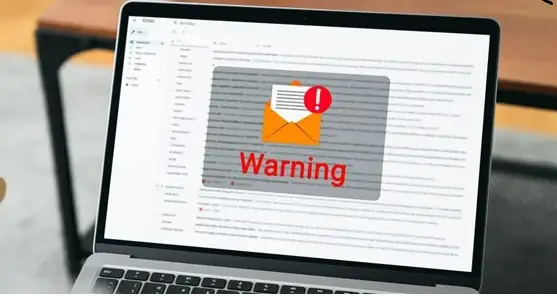
Local IT specialists such as ILL IT Solutions in Chadwell Heath (RM6) regularly help individuals and small businesses recover compromised email accounts and improve their online security. Acting quickly when you suspect your email has been hacked can prevent further damage and stop attackers gaining access to other important accounts.
A hacked email account can expose a large amount of your personal information, so it’s important to act quickly if you think someone else has gained access. Our experts outline the steps you can take to regain control of your emails, documents and personal data.
If you believe your inbox has been compromised, the first thing you should do is change your password immediately. Acting quickly can help prevent further unauthorised access.
When a hacker gains entry to your email account, they may attempt to access other online services linked to it. By requesting password reset links, they could take control of additional accounts. They may also pretend to be you, sending messages to your contacts in an attempt to obtain money or sensitive information.
In the guide below, we explain how you can recover access to email accounts such as Gmail, Outlook and Apple Mail. Even if your account is currently secure, reviewing these steps can help you understand what to do should a security issue arise in the future.
How can I recover access to my email account?
“I have recently been contacted by several friends and family members who told me they received an email from my Gmail account requesting that they purchase a gift card.
This message was not sent by me, so it appears that someone may have gained unauthorised access to my email account. What steps should I take to regain control of my account and prevent further misuse?”
According to technicians at ILL IT Solutions, a local computer repair and IT support provider serving Chadwell Heath, Romford, Dagenham and surrounding East London areas, email compromises often occur because passwords are reused across multiple services. In many cases, simply changing the password is not enough — the account must be fully reviewed for hidden security changes made by the attacker.
How to recover your inbox
1. Recover the account and change the password
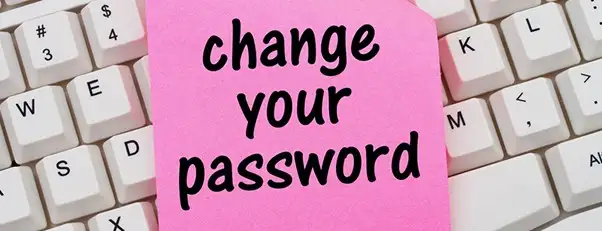
If you are still able to log in to your email account, the first step is to change your password immediately. Choose a strong password that is unique and not used for any other accounts.
For Gmail:
Click your profile picture in the top-right corner and select Manage your Google Account. Open the Security section and choose Password under the sign-in options.
For Outlook / Microsoft accounts:
Click your profile icon in the top-right corner and select My Microsoft account. Navigate to Security and select Change password.
For Apple accounts on a Mac:
Open the Apple menu and go to System Settings. Select your Apple ID, then open Sign-In & Security and choose Change Password.
If you cannot access your account because the password has already been changed, you will need to use the account recovery process. When attempting to sign in, select the Forgot password option and follow the prompts to confirm your identity. This usually involves verification through a registered phone number or a backup email address. Some providers, such as Gmail, may also send a verification notification to a linked mobile device.
After your identity has been confirmed, you will be able to create a new password and regain access to your account.
Check your recovery details
While reviewing your account’s security settings, it is important to check the recovery information linked to the account, such as the recovery email address and phone number. Cybercriminals sometimes add their own contact details so they can regain control of the account later. Remove any information you do not recognise and ensure that your legitimate recovery details are accurate and up to date.
What makes a password secure?
When creating passwords for online services, avoid using common words, predictable phrases, or personal information such as names, birthdays, or other easily guessed details.
A strong password should include a combination of upper-case and lower-case letters, numbers, and special characters or symbols. It is also recommended that each account has its own unique password, so that if one account is compromised in a data breach, your other accounts remain protected.
For more tips, including using password managers, see our full guide on how to create secure passwords.
2. Log out of all other devices
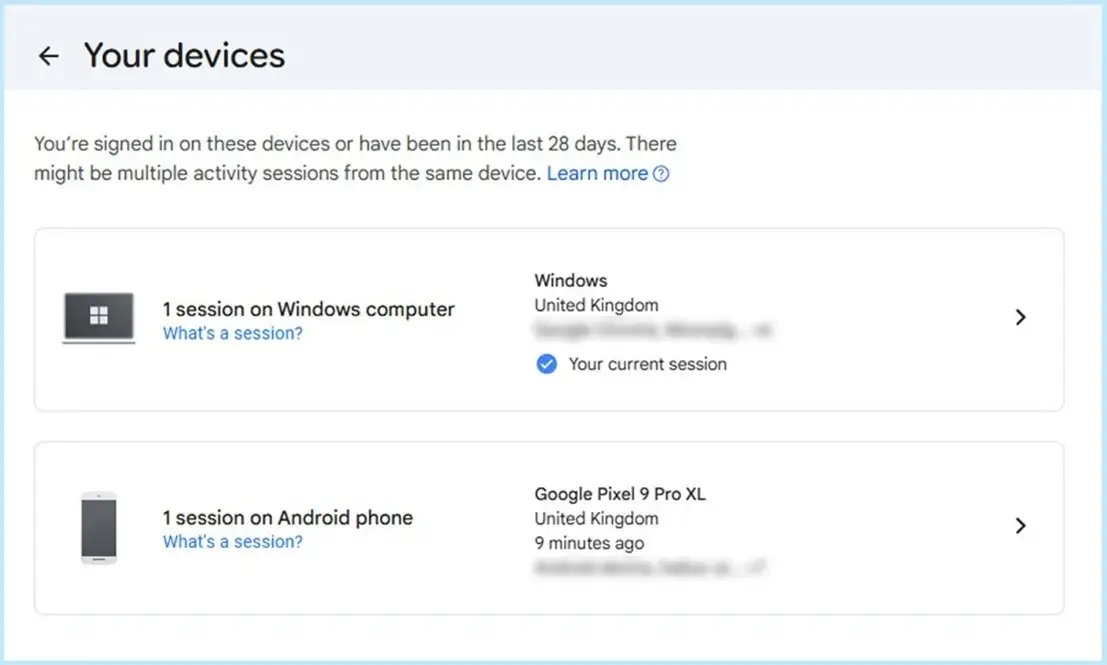
Not every email provider includes this option, but major services such as those offered by Google, Microsoft, and Apple allow you to review the devices currently connected to your account.
Within your account’s security settings, you can usually see a list of devices that are signed in. If you notice a device or location that you do not recognise, you should remove or sign out that device immediately.
- For Gmail:
Click your profile icon in the top-right corner and select Manage your Google Account. Open the Security section and locate Your devices. Choose the unfamiliar device and select Sign out.
- For Outlook / Microsoft accounts:
Click your profile icon in the top-right corner and open My Microsoft account. Go to Devices and remove any devices that you do not recognise.
- For Apple accounts on a Mac:
Open System Settings and select your Apple ID. Scroll down to view all devices connected to your Apple ID. If you see an unfamiliar device, select it and choose Remove from Account.
Taking this step helps ensure that only authorised devices remain connected to your account.
3. Check your auto-forward settings
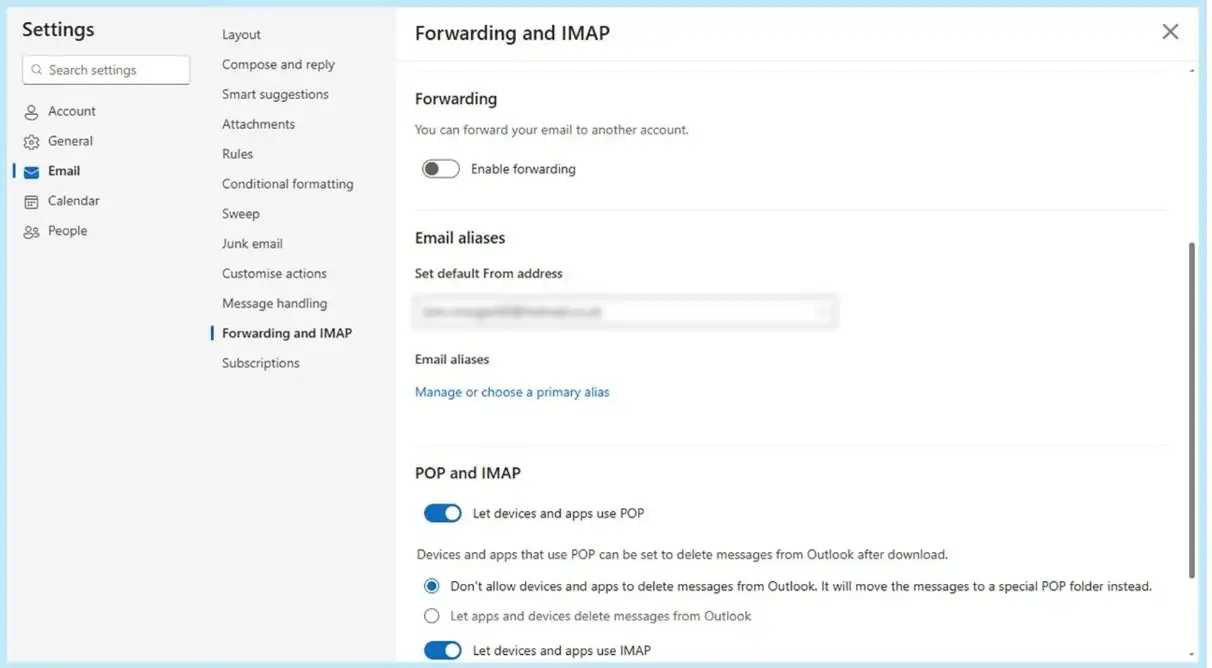
If someone gains unauthorised access to your email account, they may activate automatic email forwarding. This allows them to continue receiving copies of your emails even after you regain control of the account and change your password. Because this setting can be easily missed, it may allow attackers to keep accessing private information and potentially carry out further malicious activity.
To prevent this, review your account settings and check whether email forwarding has been enabled.
- For Gmail:
Open Settings and select See all settings. Go to Forwarding and POP/IMAP and remove any forwarding addresses you do not recognise.
- For Outlook:
Open Settings, then navigate to Email followed by Forwarding and IMAP. If forwarding is turned on, choose Disable forwarding and save the changes.
- For iCloud Mail:
Select the gear icon and open Settings. Choose Mail Forwarding and review the forwarding address. If you do not recognise the address, remove it or untick Forward my email to. You can also disable Delete messages after forwarding if that option is selected.
Checking and removing unauthorised forwarding rules helps ensure that only you receive messages sent to your account.
4. Examine your inbox filters
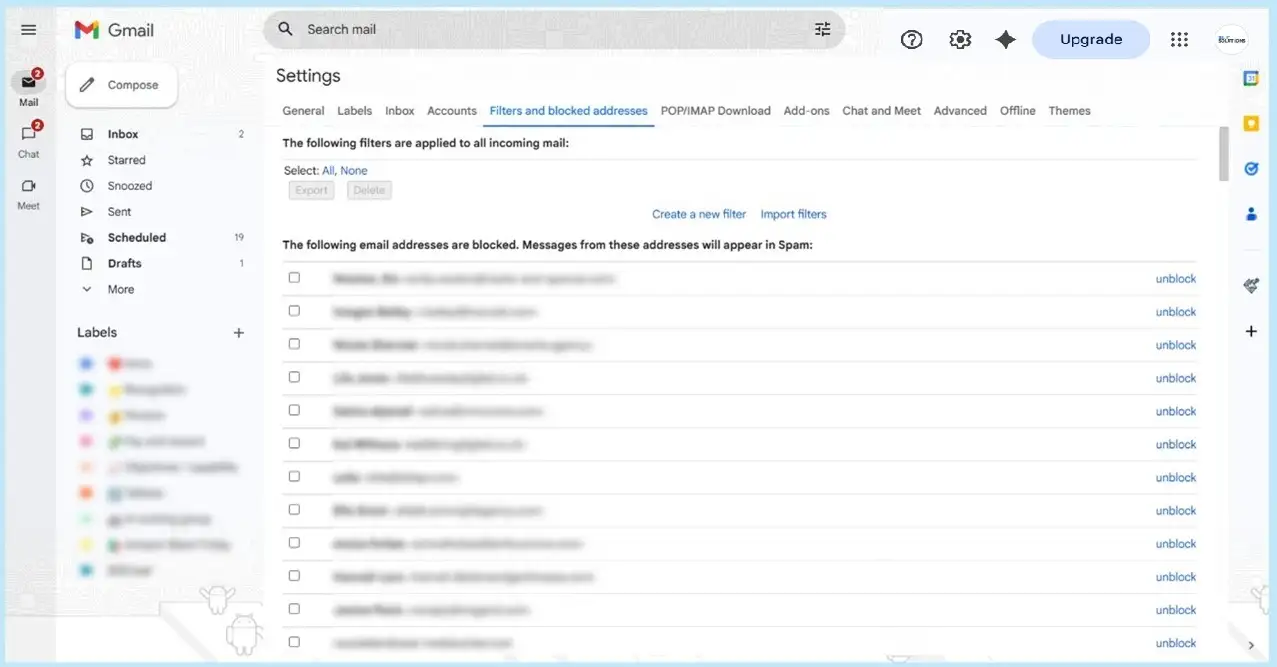
Hackers who gain access to an email account may create filters or rules that automatically block, delete, or move certain emails to other folders. This tactic can make it harder for you to notice security alerts or other important messages.
To protect your account, review the filters or rules in your email settings and remove any that you do not recognise or remember creating.
- For Gmail:
Open Settings and select See all settings. Navigate to Filters and Blocked Addresses, review the list carefully, and remove any filters that appear unfamiliar.
- For Outlook:
Go to Settings, then Email, and select Rules. Check the rules that have been set up and delete any that you did not create.
- For iCloud Mail:
Select the gear icon and open Settings, then choose the Rules tab. Review each rule and remove any that you do not recognise by selecting the trash icon.
Regularly checking these settings can help ensure that your emails are not being redirected, hidden, or deleted without your knowledge.
5. Notify your contacts
While your account was compromised, the hacker may have used it to send fraudulent or phishing emails to people in your contact list. They may also have copied your contacts to target them at a later date.
For this reason, it is advisable to inform your contacts that your email account was compromised and accessed without permission. Let them know that any suspicious messages sent from your account should be ignored and not responded to. This helps reduce the risk of others becoming victims of phishing attempts.
Using reliable antivirus or internet security software can also help protect you from phishing scams and other online threats by detecting suspicious links, websites, or malicious attachments before they can cause harm.
6. Look over your other accounts
If you have other online accounts that use the same or a similar password as the one that was compromised, you should update those passwords as soon as possible.
Using identical passwords across multiple services can create a chain reaction, where access to one account allows attackers to break into others. To reduce this risk, ensure that every account has a different and unique password.
It is also possible that the attacker attempted to access other services by using your email address for password resets or verification. Because of this, it is advisable to review and update the passwords for any accounts that store personal, financial, or otherwise sensitive information.
Steps to help prevent your email account from being hacked again
- Create strong and unique passwords for every online account you use. A password manager can help generate and store secure passwords safely.
- Turn on two-factor authentication (2FA) in your email security settings. This adds an additional layer of protection when signing in.
- Use an authenticator application where possible, as it can provide more secure verification than text messages.
- Ensure your recovery information is current, including your backup email address and phone number, so you can regain access if needed.
- Monitor your account activity regularly, such as checking which devices are signed in or reviewing recent login attempts.
- Exercise caution when connecting to public Wi-Fi networks, especially when accessing email or other sensitive accounts.
- Keep your computer and applications up to date, since updates often include fixes for security weaknesses that attackers may exploit.
If you are unsure whether your system or online accounts have been fully secured, a professional security check may be worthwhile. Many people choose to consult a local IT specialist such as ILL IT Solutions, who provide virus removal, email security assistance and computer repairs for home users and small businesses across Chadwell Heath and the surrounding areas.
Need help securing your email or computer?
If you continue experiencing suspicious activity or want to ensure your devices are properly secured, it may be helpful to seek professional assistance.
ILL IT Solutions provides:
• Virus and malware removal
• Email account recovery assistance
• Computer and laptop repairs
Based in Chadwell Heath (RM6), ILL IT Solutions supports customers across Romford, Dagenham, Ilford, Barking and East London.
