

Blog
6 signs your computer has been hacked – and what to do about it form your Trusted Computer Repair in Chadwell Heath, Romford, Dagenham & Ilford
Unusual behaviour on your Windows PC or laptop is not always harmless. Recognising the early warning signs can help you identify potential threats and protect your personal data before a situation becomes more serious.
At ILL IT Solutions, a trusted computer repair specialist in Chadwell Heath, we regularly help customers from Romford, Dagenham, Ilford and across East London resolve security issues and malware infections that affect both home and business computers.

Many customers bring devices to us at ILL IT Solutions with our computer repair shop in Chadwell Heath. after noticing unusual behaviour such as unexpected pop-ups, disabled antivirus protection, or slow performance. In many cases the issue is minor, but sometimes it reveals a deeper security problem that requires professional malware removal.
Being aware of the signs of a compromised computer can help you act quickly. For instance, you might notice that your antivirus software has been unexpectedly disabled, or that unfamiliar programs have appeared in your web browser, start menu, or applications folder without you installing them.
Below, the technicians at ILL IT Solutions share six warning signs that your computer may have been compromised. If you notice any of these issues on your Windows PC or laptop and live in Romford, Dagenham, Ilford, Chadwell Heath or surrounding areas, it may be worth carrying out a security check why not give us a call or pop instore we take care of it all for you.
1. Your antivirus software has been disabled.

If malware has infected your computer, one common sign is that your antivirus software may be disabled without your knowledge. When this happens, real-time protection may stop running in the background, meaning you might no longer receive security alerts, scan reminders, or other important notifications.
If you haven’t recently changed your antivirus settings yourself, this should be treated as a potential warning sign.
That said, malware isn’t always the cause. Sometimes software conflicts or operating system updates can accidentally disable antivirus protection. For this reason, it’s important to check that your security software is still active through its application or online dashboard. If it isn’t functioning correctly, reinstalling the program may resolve the issue.
If you depend on the built-in security features that come with your device rather than a third-party antivirus program, you should also verify that these protections are still enabled in your system settings.
Below, we explain how to check the security status on both Windows.
On Windows:
- On Windows 11, head to Start > Settings > Privacy & Security > Windows Security > Virus & threat protection and check that Microsoft Defender (or your chosen antivirus) is switched on. If you use a third-party antivirus, open the app and check its protection status. Reinstall if necessary.
If malware won’t let you turn your antivirus back on, try restarting your computer and running it in Safe Mode before launching a full antivirus scan – Microsoft’s website has more information on enabling Safe Mode.
- Windows 10 users can open the Start menu, then go to Settings > Update & Security > Windows Security. Select Virus & threat protection and follow the same instructions.
Note official support for Windows 10 ends on 14 October 2025, meaning Microsoft will no longer offer fixes, new features or security updates after that date.
2. New programs or files appear on your computer.
When a computer becomes infected with malware, it can sometimes be used to install and run programs designed to collect sensitive information, such as login credentials, without the user’s knowledge. You may also notice unfamiliar files appearing in folders like Downloads or Documents that you do not remember creating or saving.
However, the presence of new software is not always a sign of a problem. In some cases, it may simply be an update to an existing application or a driver installed for newly connected hardware, such as a printer.
If you are unsure about a program or file that has appeared on your computer, it is a good idea to research it. Performing a quick web search from another device can help you confirm whether the software is legitimate or something that may require further investigation.
On Windows:
To look through your installed programs, open the Start menu and head to Settings > Apps > Installed apps (Windows 11) or Settings > Apps > Apps & features (Windows 10).
Review the list of installed applications and remove anything you don’t recognise or remember installing. If you are unsure about a program, search for its name using another device before deciding whether to uninstall it. Sorting the apps by installation date can also help you identify anything that has been added recently.
It is also a good idea to review the programs that run when your computer starts. To do this, press Win + R, type msconfig, and press Enter. From there, open the Services or Startup tab and look for any unfamiliar or suspicious items that may be running in the background. Disabling unnecessary startup services can help prevent unwanted software from launching automatically.
3. Unfamiliar logins to your online accounts.

Many online platforms, such as email services, social media networks, and shopping websites, will notify you if they detect unusual activity on your account. Cybercriminals often use passwords obtained from data breaches in attempts to gain unauthorised access.
For instance, you may receive a notification saying that your account was accessed from an unfamiliar location or from a device you do not recognise. If this occurs without your knowledge, it could indicate that your login credentials have been compromised, potentially due to malware or another security issue on your computer.
If you notice any suspicious account activity, it’s important to take action immediately.
On both Windows and Mac devices, the following steps can help you secure your accounts and reduce further risk.
- Update your passwords immediately – Change your passwords as soon as possible and ensure each website or service has its own unique password. Avoid using easily guessed details such as names, birthdays, or other personal information. You can also check whether your email address or passwords have appeared in known data breaches by visiting haveibeenpwned.com.
- Turn on two-factor authentication (2FA) – Enabling 2FA adds an extra layer of security. When someone attempts to log in from a new device, the service will send a one-time verification code to a trusted device or app. This allows you to confirm or block the login attempt.
- Review recent account activity – Most online services provide a page showing recent sign-in activity. Checking this can help you identify whether a login attempt was legitimate or suspicious. Look closely at the device used and the location of the login. The exact steps vary by provider; for example, with Outlook you can visit account.microsoft.com, open Security, and select View my sign-in activity.
- Run a full antivirus scan – Security software can help detect and remove malware that may have been installed to capture your usernames, passwords, or other sensitive information.
Warning: Do not fall for a phishing scam
Although some security alerts are genuinely sent by the service you use, others may be fraudulent messages intended to trick you into revealing personal information. These types of scams are known as phishing attacks.
Before clicking on any link within an email, move your cursor over it to preview the destination address. If you are unsure about the message, it is safer to open your browser and visit the company’s official website directly rather than following links in the email.
There are several warning signs that an email could be a scam. These include messages that pressure you to act immediately, unexpected contact from an unfamiliar email address or phone number, poor spelling or grammar, low-quality or distorted logos, and requests for sensitive or financial information.
What to do if your email has been hacked, – a compromised inbox puts your personal data at risk.
If your computer continues to run slowly after basic checks, it may require a deeper inspection. Our technicians at ILL IT Solutions in Chadwell Heath regularly carry out malware removal, virus clean-ups and performance optimisation for customers throughout Romford, Ilford and the surrounding RM6 area.
4. Your PC is running slower than normal
If your computer begins to freeze during normal tasks or takes longer than usual to open programs, the cause may be something simple such as older hardware, limited storage space, or too many applications running at startup.
Even so, it is still wise to carry out a few checks to ensure the problem is not more serious. Certain types of malware can use your computer’s processing power while secretly collecting data in the background.
A gradual decline in performance over several months is usually linked to normal wear and system clutter. However, if your computer suddenly becomes much slower without any obvious reason, it may indicate the presence of malicious software.
On Windows:
Press Ctrl + Shift + Esc to open Task Manager. From here, you can select the Process tab to see a list of all running apps and background processes.
Check for unfamiliar programs that are using a large amount of CPU, memory, or network resources. You can sort the list by clicking the column headings to bring the processes using the most resources to the top.
If you notice anything unusual, run a full antivirus scan before attempting to end the process. Stopping the wrong task could interrupt an essential system process and cause your computer to become unstable.
If you are unsure what a particular process does, it’s best to research its name online before taking any action.
5. Have the settings in Your web browser changed
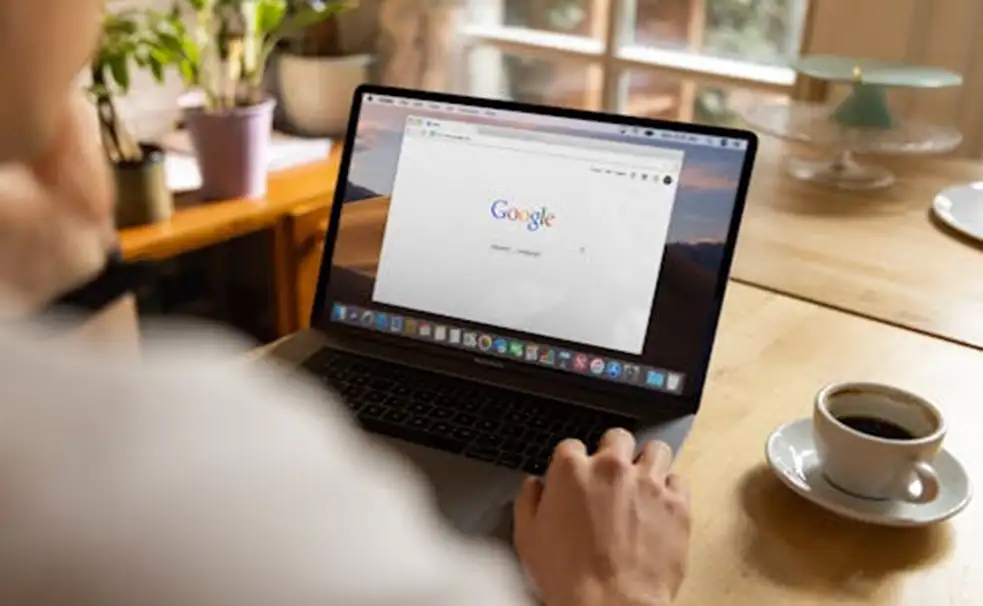
Malware can sometimes alter your browser settings without your knowledge. This may result in your default search engine being changed to one that generates advertising revenue for scammers or redirects you to unsafe or phishing websites.
If you think this may have happened on your computer, begin by running a full antivirus scan to detect and remove any malicious software. After confirming that your system is clean, open your browser settings and restore your preferred homepage and default search engine.
It’s also important to review the browser extensions installed in your web browser, as unwanted or malicious extensions may have been added without your permission.
On Windows:
- If you’re using Google Chrome, head to Settings > Search engine and check that the default search engine is the one you actually want to use. Select Manage search engines and site search and remove entries you don’t recognise. Reset your homepage if it has been changed. Go to Settings > Extensions and uninstall any add-ons you did not install yourself.
- On Microsoft Edge, go to Settings > Privacy, search and services. Remove search engines you don’t recognise and reset your homepage if it has been changed. Open Settings > Extensions and delete anything unfamiliar.
6. You keep seeing pop-ups and adverts
If you start receiving frequent security warnings or advertisements from unfamiliar applications, it could be a sign that your computer has been infected with adware. These programs are designed to push users into clicking links, installing additional unwanted software, or even paying for fake security products.
Adware commonly appears as persistent pop-up messages on your desktop, sometimes even when no web browser is open. It may also display alarming warnings intended to scare you into downloading unnecessary software.
To deal with this, run a full antivirus scan to identify and remove any malicious files. Afterwards, review the list of installed programs and uninstall anything suspicious. Pay particular attention to recently added applications, especially so-called “PC cleaner” tools, as these are often associated with adware.
Need help removing a virus or malware from your computer?
If you suspect your computer has been compromised and you’re unsure how to fix the problem safely, professional help can prevent further damage or data loss.
ILL IT Solutions provides computer repair, virus removal, laptop repair and system diagnostics in Chadwell Heath, serving customers from Romford, Dagenham, Ilford and across East London.
Our technicians can identify hidden malware, remove unwanted software, and ensure your system is running securely again.
If your computer is showing any of the warning signs above, it may be worth arranging a professional check before the problem becomes worse so why not call us today or pop in store.
