

Blog
How to create secure passwords
How to create secure passwords
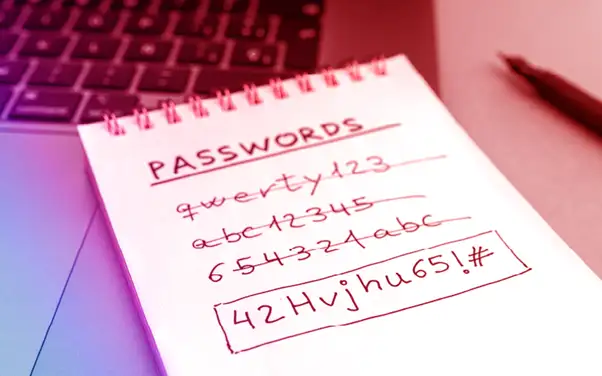
Creating Strong and Secure Passwords
Keeping track of passwords for the many websites and services we use every day can be frustrating. However, strong passwords are essential for protecting your personal information, online accounts, and sensitive data.
The good news is that there are simple ways to create secure passwords while making them easier to manage. The guidance below explains how to strengthen your password security and improve the way you protect your accounts.
Local Support for Password Security and Online Safety
Strong password practices are an important part of everyday cyber security. However, many individuals and small businesses still struggle with password management, account protection, and secure online access.
At ILL IT Solutions, we regularly help local customers set up secure password systems, password managers, and multi-factor authentication for their devices and online accounts. Our IT support services assist residents and businesses in Chadwell Heath, Romford, Dagenham, and the wider RM6 area to improve their digital security.
Whether you are managing personal accounts, family devices, or small business systems, following the guidance in this document can significantly reduce the risk of unauthorised access or data loss.
Quick Guide to Strong Passwords
More detailed guidance is provided below, but the key principles for creating secure passwords include:
- Use a different password for each website or service
- Avoid reusing the same password across multiple accounts
- Consider using a passphrase (a series of words) rather than a single password
- Do not include personal details such as names, birthdays, or addresses
- Use a trusted password manager to store and generate passwords
- Enable two-factor authentication (2FA) wherever it is available
- Avoid changing passwords too frequently unless there is a security concern
Following these simple practices can significantly improve the security of your online accounts and help protect your personal information.
Local Support for Password Security and Online Safety
Strong password practices are an important part of everyday cyber security. However, many individuals and small businesses still struggle with password management, account protection, and secure online access.
At ILL IT Solutions, we regularly help local customers set up secure password systems, password managers, and multi-factor authentication for their devices and online accounts. Our IT support services assist residents and businesses in Chadwell Heath, Romford, Dagenham, and the wider RM6 area to improve their digital security.
Whether you are managing personal accounts, family devices, or small business systems, following the guidance in this document can significantly reduce the risk of unauthorised access or data loss.
Why you can trust our advice on strong passwords
Use unique passwords for every account
Use Truly Unique Passwords
When we recommend using unique passwords, we mean that each account should have its own completely different password.
Some people try to simplify things by creating a basic password and then slightly modifying it for different websites. For example, they might add the name of the website or change a few characters. However, this approach is no longer considered secure.
If a cybercriminal manages to obtain your main password, they may quickly recognise the pattern you use and gain access to multiple accounts.
For better protection, every online account should have its own separate password, ensuring that if one account is compromised, the others remain secure.
Don’t use personal information as passwords
Passwords should never include information that someone else could easily discover or guess about you.
For example, avoid using:
- The name of your child, partner, or pet
- Your middle name
- Your birthplace or the town where you currently live
- Your mother’s maiden name
- The name of your favourite sports team, athlete, or sport
- Your favourite holiday destination
In general, if the information is connected to your personal life, it is not suitable for use as a password.
It is also important to be mindful of what you share online. Social media posts, quizzes, and games often encourage people to reveal personal details similar to those used in security questions or passwords. Although these activities may appear harmless, they can expose information that could later be used to guess or compromise your account credentials.
Use Passphrases Instead of Single Words
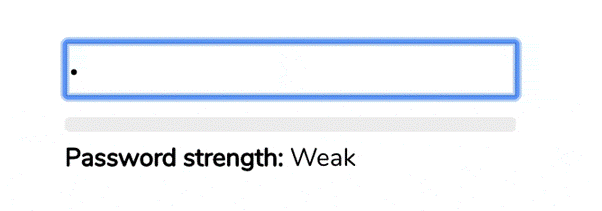
Even when websites encrypt stored passwords, simple dictionary words are still vulnerable. Cybercriminals often use tools containing large databases of commonly used passwords and their encrypted equivalents. These databases, sometimes referred to as rainbow tables, allow attackers to quickly identify weak passwords.
A more secure option is to use a passphrase rather than a single word. A passphrase is made up of several words combined together, making it longer and harder to guess.
However, it’s important to avoid phrases that are widely known, such as famous quotes, as these can still be predicted. You should also avoid phrases that contain personal information that others could easily discover.
For instance, if your partner’s name is John and his birthday is in August, a phrase such as “John was born in August” would be a poor choice because it is based on easily guessed personal details.
Instead, create something unusual or unrelated to your personal life. An example of a stronger passphrase might be “Blue dogs walk backwards.”
The words don’t even need to form a logical sentence. A combination of random words such as “umbrella cable kitten” can also create a strong and memorable passphrase.
Pick long passwords
Choose Longer Passwords
Many websites require passwords to meet a minimum number of characters. However, the longer your password is, the more difficult it becomes for someone to break or guess.
Increasing the length of your password significantly improves its security. For this reason, using a passphrase made up of several words is usually more effective than relying on a short, single-word password.
Use special characters cleverly
Use Special Characters Carefully
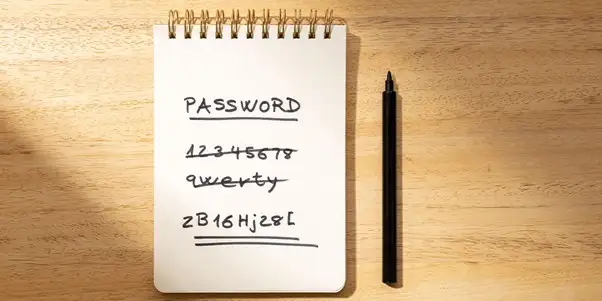
Many websites require passwords to include a mixture of numbers, capital letters, and symbols. Because of this, people often try to make simple substitutions, such as changing letters to look-alike characters. For example, turning “password” into “p@$w0rd”.
However, this approach does not provide much additional security. Attackers are well aware of these common substitutions and many password-cracking tools automatically test them.
If a website requires the use of special characters, it is better to add them naturally within a longer passphrase rather than simply replacing letters.
For example, the passphrase “umbrella cable kitten” could be strengthened by including symbols and capitalisation, such as *“&umbrella+Cable!kitten”**.
Adding characters in this way helps create a password that is longer, more complex, and more difficult to guess.
Don’t write down your passwords
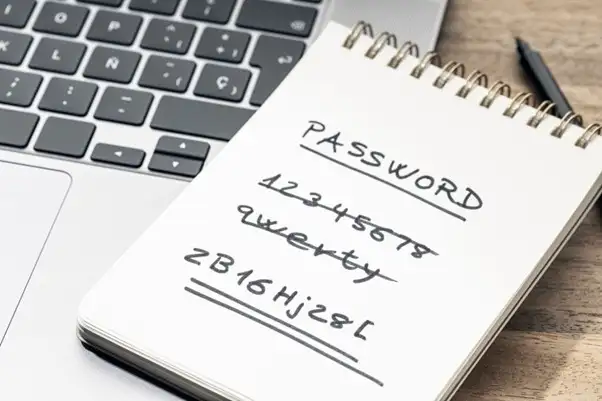
Avoid Writing Down Passwords
It can be tempting to keep a written list of passwords rather than trying to remember them all. However, this approach carries security risks.
While keeping a written record of strong, unique passwords may still be safer than using the same weak password across multiple websites, it is generally not recommended.
If you do decide to write your passwords down, it is important to store that information securely. Do not leave it somewhere easily accessible, such as on your desk or near your computer. Instead, keep it in a locked drawer, safe, or another secure location.
Even if you live alone or trust those around you, physical security should still be considered. In the event of a burglary, an intruder could potentially take not only your devices but also any written record of your passwords. Protecting both your devices and your password information is therefore essential.
Use a password manager
If you have many accounts with long, complex passwords, remembering them all can be difficult. A practical solution is to use a password manager.
A password manager is a piece of software designed to securely store and manage your passwords. Many of these tools can also generate strong, random passwords and automatically link them to the correct websites or services.
Most password managers work by creating an encrypted digital vault where all your passwords are securely stored. In addition to storing login details, they often offer features such as generating secure passwords and automatically filling in login information when you visit a website.
There are many password managers available, but they generally provide similar core functions. Most offer both free and premium versions, and many include mobile apps and browser extensions so you can access your passwords across multiple devices, including computers, smartphones, and tablets.
Which password manager should I use?
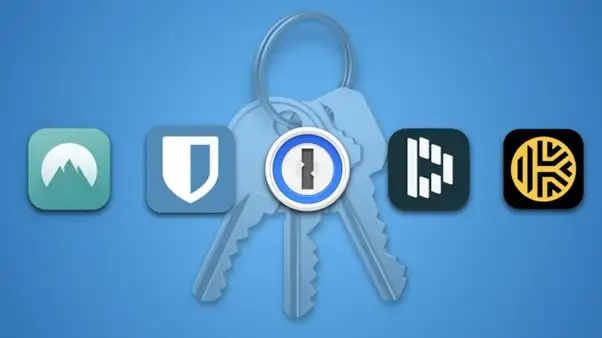
Examples of Password Managers
There are many password managers available online. While they differ slightly in features and pricing, most provide secure storage for passwords, password generation tools, and the ability to sync across devices. Below are some widely used options you may wish to consider, depending on your needs.
- Bitwarden – An open-source password manager that is straightforward to use. The personal version is free and allows synchronisation across unlimited devices. A premium plan (around $10 per year) adds features such as advanced security reports, encrypted file and text sharing, emergency access for trusted contacts, and an integrated authenticator.
- Dashlane – Known for its simple setup and easy synchronisation between devices. The free plan allows storage of up to 25 passwords on a single device, while paid plans offer unlimited password storage and multi-device access.
- 1Password – A popular password manager that includes tools for generating secure passwords, storing sensitive notes, and supporting two-factor authentication. It typically offers a 14-day trial, after which individual plans start from around $2.99 per month.
- Google Password Manager – Built into the Chrome browser and Android devices, allowing users to manage passwords through their Google account. It can also warn users if a saved password may have been exposed in a data breach. Using two-factor authentication on your Google account is strongly recommended.
- iCloud Keychain – Apple’s built-in password management system that securely stores login details and synchronises them across Apple devices signed in with the same Apple ID.
- LastPass – A widely used password manager. Although it experienced a significant data breach in 2022, additional security measures have since been introduced, including stronger multi-factor authentication requirements. As with any password manager, it is essential to create a strong master password and remain alert to potential phishing or social engineering attempts.
Regardless of which password manager you choose, it is important to protect it with a strong master password and enable two-factor authentication wherever possible to maximise security.
Additional Password Security Measures
If you want to add an extra layer of protection to your online accounts and personal information, there are several additional security practices you can adopt.
Two-Factor Authentication (2FA)
One of the most effective ways to protect your accounts from unauthorised access is by enabling two-factor authentication (2FA).
Two-factor authentication adds an additional verification step when you sign in to an account. Many websites and online services now support this feature, although it may need to be enabled within your account’s security settings.
When 2FA is activated, logging in usually requires two separate forms of verification. After entering your password, the service will request a temporary verification code. This code is typically sent to your mobile phone via text message or generated by an authentication app.
If you attempt to log in from a new device or unfamiliar location, you will need to enter this one-time code before access is granted. Even if someone has discovered your password, they will not be able to access your account without the additional code.
Authentication Apps and Security Keys
Instead of relying solely on SMS messages, many services allow you to use authentication apps or security keys to generate verification codes.
Examples include:
- Google Authenticator
- Okta Verify
- Yubico YubiKey
These tools can generate secure verification codes directly on your device or provide a physical key for authentication.
While receiving a code by SMS is convenient, authentication apps or security keys can provide additional protection. For example, if a phone is lost or stolen, someone could potentially receive the verification messages sent to that device. Using dedicated authentication tools can reduce this risk and strengthen your overall account security.
Biometric authentication
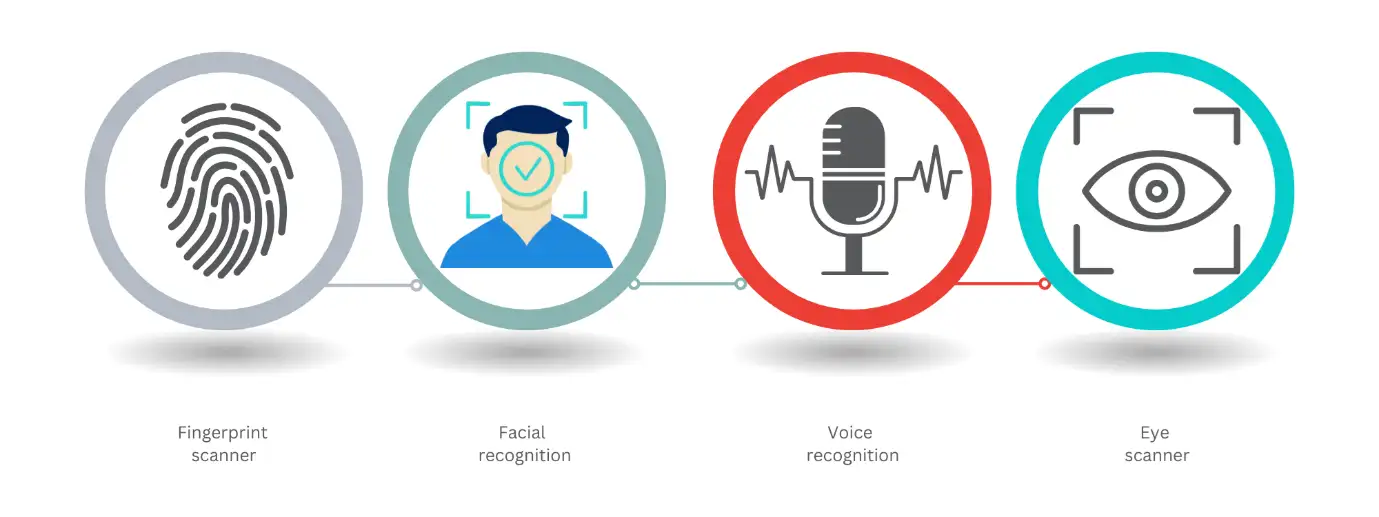
Biometric Login
Many modern devices now include biometric security features, allowing users to unlock devices or sign in using physical characteristics such as a fingerprint, facial recognition, or an iris scan instead of a password or PIN.
Biometric authentication can make logging in faster and more convenient, particularly for smartphones, tablets, and laptops. It is also increasingly used to access websites, apps, and online services.
However, while biometrics can improve convenience, they are not always completely secure. For example, some facial recognition systems have been shown to be vulnerable to being fooled by a simple two-dimensional photograph rather than a real person.
Because of this, biometric login should ideally be used alongside other security measures, rather than as the only method of protection. Strong passwords and two-factor authentication still play an important role in maintaining good security.
Some device reviews and security tests also highlight when biometric systems have weaknesses. In such cases, clear warnings should be provided so users understand any limitations and can take additional steps to protect their devices and accounts.
Managing Security Risks
No authentication method provides complete protection. Each approach has potential vulnerabilities. Passwords may be guessed or cracked, password managers could be targeted by attackers, two-factor authentication may sometimes be bypassed, and biometric systems can occasionally be deceived.
Because of this, protecting online accounts is largely about reducing risk by using the most appropriate security measures available. In most everyday situations, common authentication methods offer a good level of protection. For example, enabling two-factor authentication that sends a verification code to your phone is significantly safer than relying on a password alone.
If you want additional reassurance about the strength of your passwords, you can also use password-checking tools to assess how difficult they would be to crack. One example is the Bitwarden Password Strength Tester, which estimates how secure a password may be based on its length and complexity.
Using a combination of strong passwords, password managers, and multi-factor authentication provides a practical and effective way to improve your overall online security.
Changing passwords
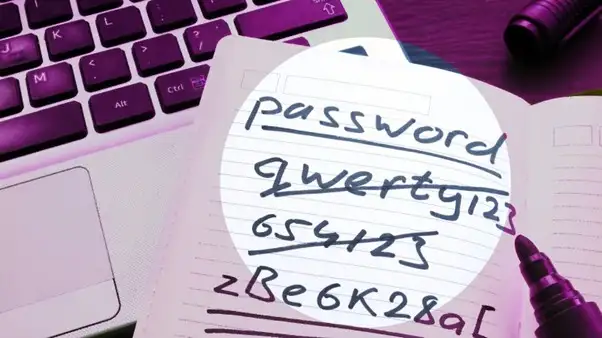
Changing Passwords
In the past, people were often advised to change their passwords frequently, and many organisations still require regular password updates. However, modern cyber-security guidance has evolved.
The National Cyber Security Centre now advises that passwords generally do not need to be changed regularly unless there is a specific reason to do so, such as evidence that a password has been compromised or exposed.
Research has shown that when people are forced to change passwords too often, they tend to reuse old passwords or make only small, predictable changes. This behaviour can actually reduce security rather than improve it.
If you already have a strong, unique password that is not used anywhere else, it can remain effective for a long time without needing to be replaced.
Random Password Generators
If you want the highest level of password security without needing to update passwords frequently, using a random password generator can be helpful.
Randomly generated passwords are typically very difficult to guess or crack because they contain a mix of uppercase and lowercase letters, numbers, and symbols arranged in a completely unpredictable way.
You can create your own complex password and then test its strength using a password-checking tool. Alternatively, many password managers provide built-in password generators that create secure passwords for you and store them safely in your account for future use.
These include:
Examples of Online Password Generators
Many password managers also provide free password generation tools that can help you create secure and complex passwords. These tools allow you to customise the length and structure of the password while ensuring it remains difficult to guess.
Some commonly used options include:
- Bitwarden Password Generator – Allows users to generate passwords of up to 128 characters or create passphrases containing up to 20 words. The tool can be customised to include capital letters, numbers, and symbols. It also provides an indication of password strength and an estimate of how long it might take for the password to be cracked.
- LastPass Password Generator – Generates passwords up to 50 characters in length. It also offers options to make passwords easier to pronounce (by excluding numbers and symbols) or easier to read (by removing characters that can be easily confused, such as 1, I, 0, and O).
- 1Password Password Generator – Can create passwords up to 100 characters long with optional numbers and symbols. It also allows users to generate memorable passphrases of up to 15 words or produce a random PIN containing up to 12 digits.
Using tools like these can help ensure your passwords are strong, random, and difficult for attackers to guess, significantly improving the security of your online accounts.
Check if your password has been compromised
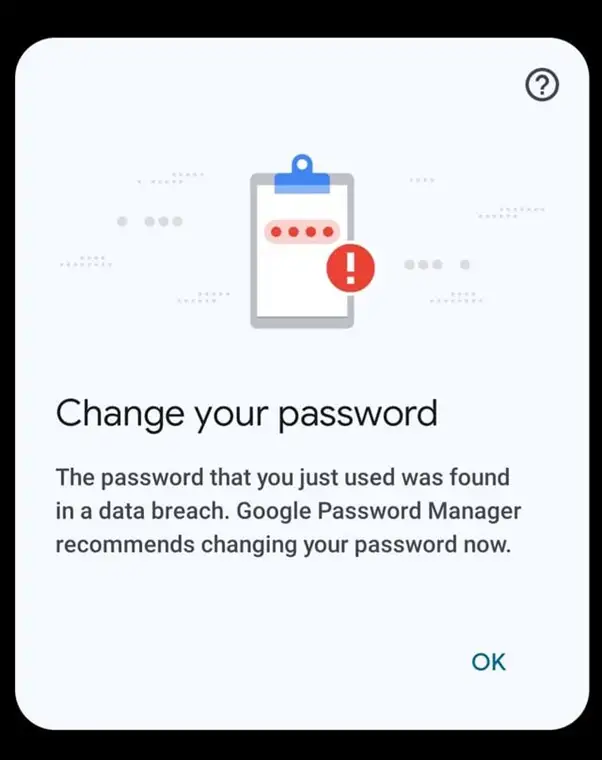
Checking if Your Accounts Have Been Compromised
With the increasing number of data breaches affecting organisations and online services, it is possible that one or more of your accounts may have been exposed at some point.
If a company experiences a data breach involving your account, it should normally inform you. However, you can also check this yourself for extra reassurance.
One widely used service is Have I Been Pwned, a public website created by security expert Troy Hunt. By entering your email address into the search tool, the site will check whether that address appears in any known data breaches recorded in its database.
If you discover that one of your accounts has been affected, there is no need to panic. However, you should take immediate action by changing the password for that account and ensuring that the same password is not used on any other websites or services.
Keep Your Account Recovery Details Up to Date
It is also important to make sure that your account recovery information is current. If you still have outdated email addresses or phone numbers linked to an account, you may not receive important security alerts or password reset messages.
Keeping your contact details up to date ensures that if you ever need to reset your password, the recovery link or verification code will be sent to a device or email account that you can still access.
Getting Help with Password Security
While the steps outlined in this guide can greatly improve online security, some people may prefer assistance setting up password managers, account recovery systems, or two-factor authentication across multiple devices.
If you need help securing your devices or accounts, ILL IT Solutions provides local IT support for individuals and small businesses. Services include:
- Setting up password managers and secure password systems
- Enabling two-factor authentication across devices
- Recovering access to locked or compromised accounts
- Improving cyber security on home and business computers
- Providing general IT support and computer repair
Based in Chadwell Heath (RM6), we support customers across Romford, Dagenham, Ilford, Barking, and surrounding areas.
Taking proactive steps to secure your passwords today can prevent serious security issues in the future.
