
Blog
How to Find Your BitLocker Recovery Key
When Windows is unable to automatically unlock a BitLocker-protected drive, it may ask for a BitLocker Recovery Key. This is a unique 48-digit code that allows you to safely regain access to your encrypted drive.
Just a word of Warning that Microsoft Support cannot retrieve, provide, or recreate a lost BitLocker recovery key.
You may be asked to enter your BitLocker Recovery Key when starting your computer if Windows detects a possible security issue, system change, or hardware change.
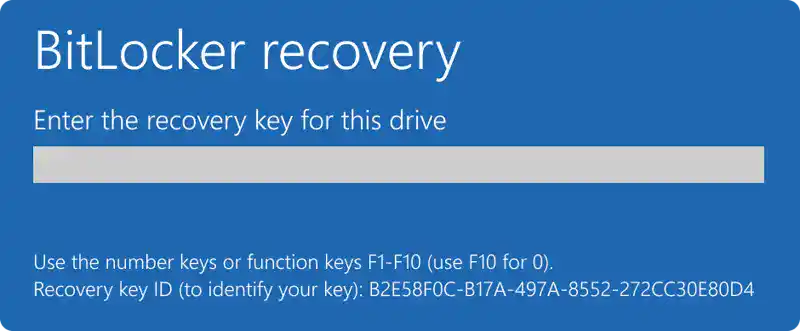
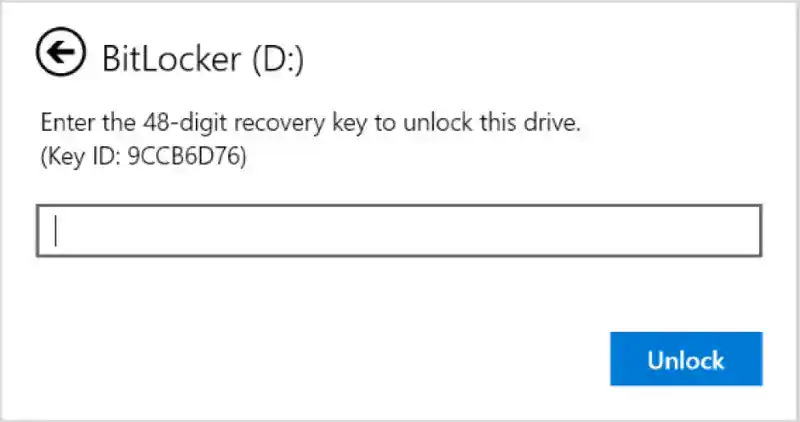
You may also be asked for a BitLocker Recovery Key when trying to access a data or external drive, especially if the unlock password has been forgotten or Windows cannot verify access automatically.
This guide explains where to look for your BitLocker Recovery Key and how to identify the correct key for your Windows device.
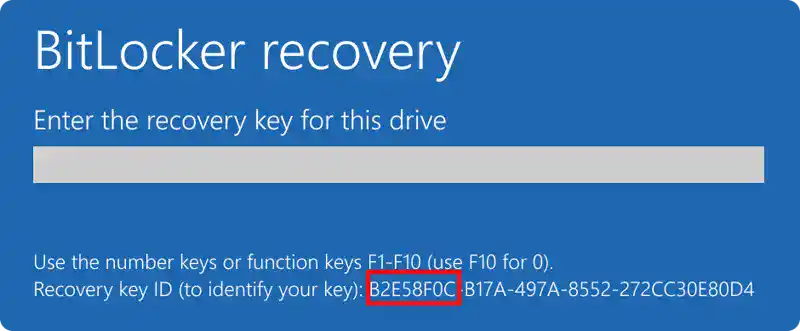
Step 1: Make a note of the Recovery Key ID
On the BitLocker recovery screen, look for the Recovery Key ID. Write down the first few characters, especially the first 8 characters, as this will help you match the correct recovery key later.
Step 2: Find Your Recovery Key
Your BitLocker Recovery Key may be stored in different places, depending on the option chosen when BitLocker was first set up.
Below, we explain the most common places to check and how to find the correct recovery key for your device.
Login to your Microsoft Account to find your Recovery Key
If your BitLocker Recovery Key was backed up to your Microsoft account, you can usually find it online.
From another working device:
- Open a web browser.
- Go to https://aka.ms/myrecoverykey
- Sign in with the Microsoft account linked to the locked computer.
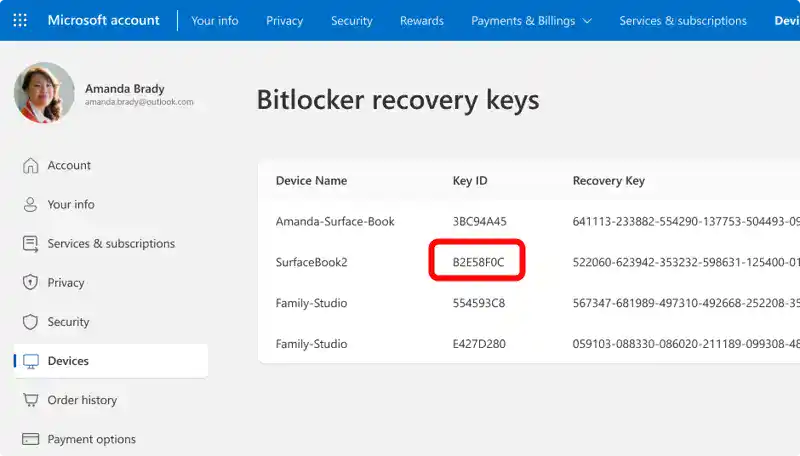
- Look for the Key ID that matches the Recovery Key ID shown on your BitLocker screen.
- Use the matching 48-digit Recovery Key to unlock the drive.
Important notes:
If someone else originally set up the computer or turned on BitLocker, the Recovery Key may be saved in their Microsoft account instead.
On Windows 11, version 24H2 and newer, the BitLocker recovery screen may show a hint for the Microsoft account connected to the Recovery Key.
Find the Recovery Key in your work or school account
If your device has ever been signed in using a work or school account, the BitLocker Recovery Key may be stored with that organisation.
You may be able to access it yourself, or you may need to contact the organisation’s IT support team for help.
From another working device:
- Open a web browser.
- Go to https://aka.ms/aadrecoverykey
- Sign in with your work or school account.
- Select Devices.
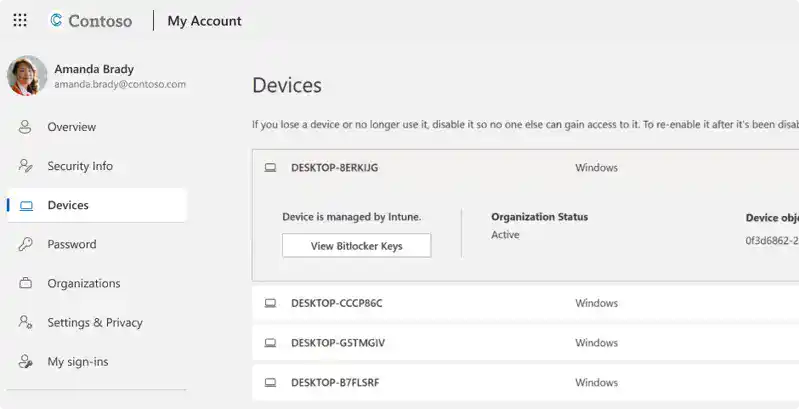
- Expand the device you need to unlock.
- Select View BitLocker Keys.
- Match the Key ID with the Recovery Key ID shown on the locked computer.
- Use the matching 48-digit Recovery Key to unlock the drive.
Check for a printed copy
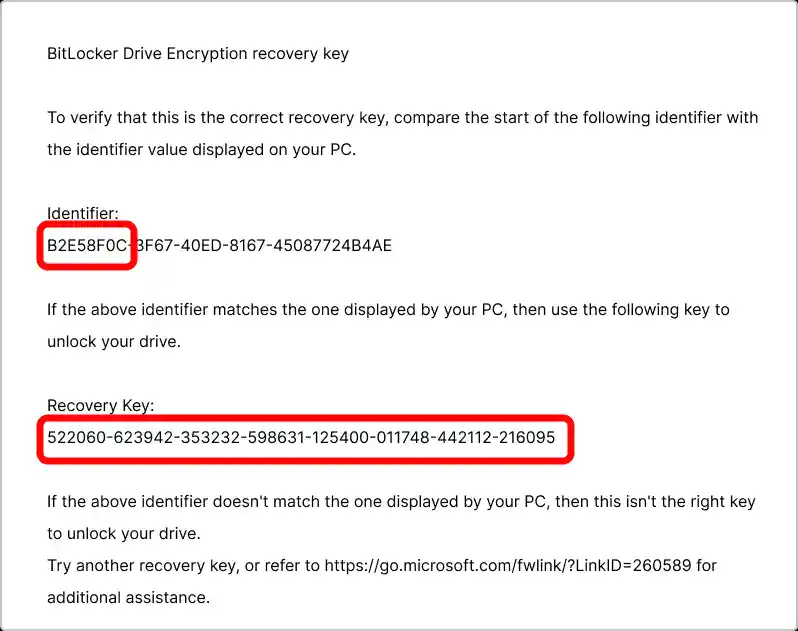
When BitLocker was first activated, the Recovery Key may have been printed and kept as a paper copy.
Check where you normally store important documents for your computer, such as paperwork folders, setup documents, warranty information, or other device records.
A printed BitLocker Recovery Key usually includes both the Key ID and the matching 48-digit Recovery Key. Use the Key ID to make sure you are entering the correct Recovery Key for your device.
Check a USB flash drive
If the Recovery Key was saved to a USB flash drive when BitLocker was set up, plug that USB drive into the locked computer and follow the on-screen instructions.
If the Recovery Key was saved as a text file on the USB drive, use another working computer to open the file and read the key.
Use the matching 48-digit Recovery Key to unlock the drive.
What if you cannot find the Recovery Key?
If your computer is managed by a business, school, or organisation, contact their IT support team first. They may be able to retrieve the BitLocker Recovery Key for you.
If the Recovery Key cannot be found and the change that triggered BitLocker cannot be reversed, the device may need to be reset using Windows recovery options.
Please note: Resetting the device will remove your files, so make sure you get advice before continuing if you are unsure.
Still need help GET IN TOUCH TODAY !!
GET A QUOTE
Checking...
Retry »
Sending message...
Fill in the form below and we will be in touch soon
